1
Find an existing measurement or add a new one
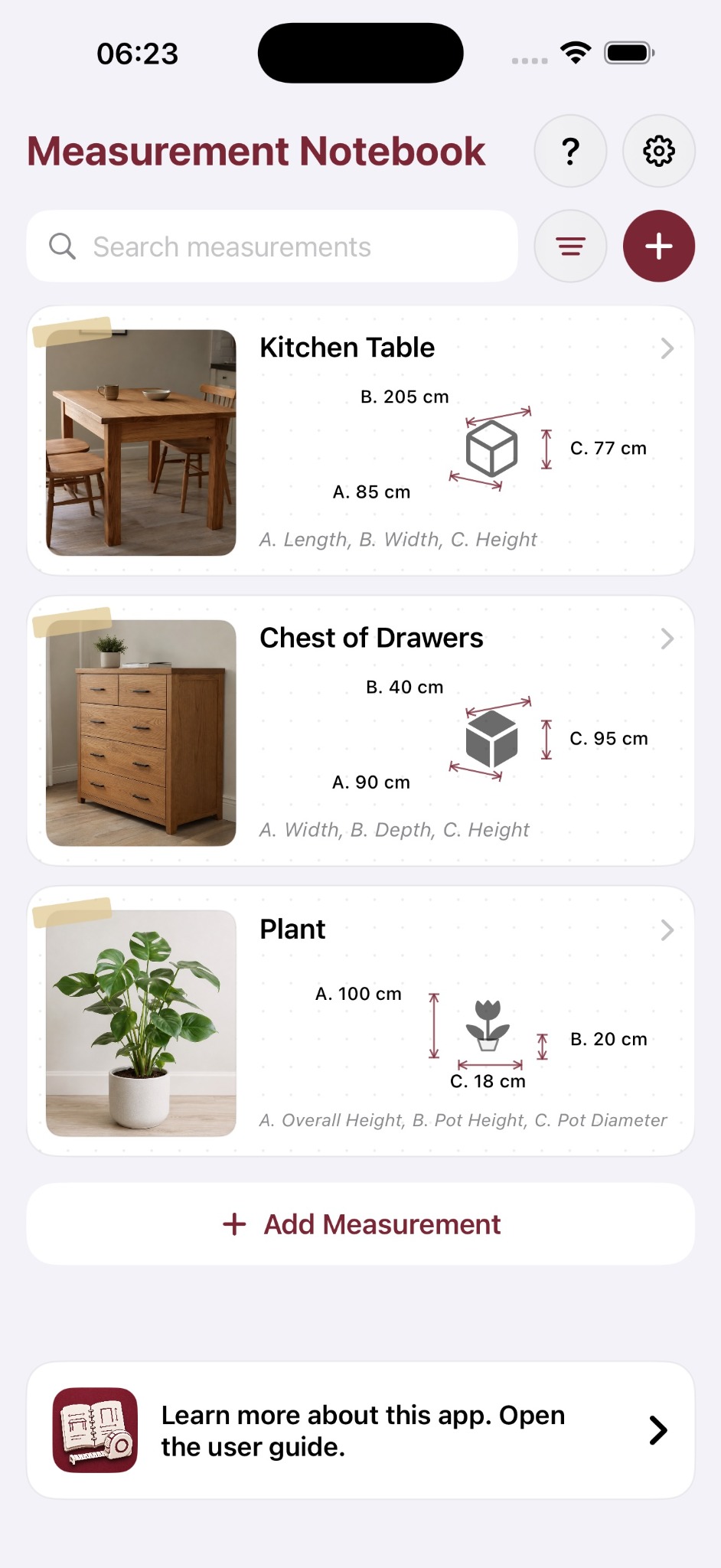
Home is your visual notebook. Search saved items, use filters or tap Add Measurement to record something new.
A quick guide to saving an everyday measurement so it is still useful when you return to it later.
Home is your visual notebook. Search saved items, use filters or tap Add Measurement to record something new.
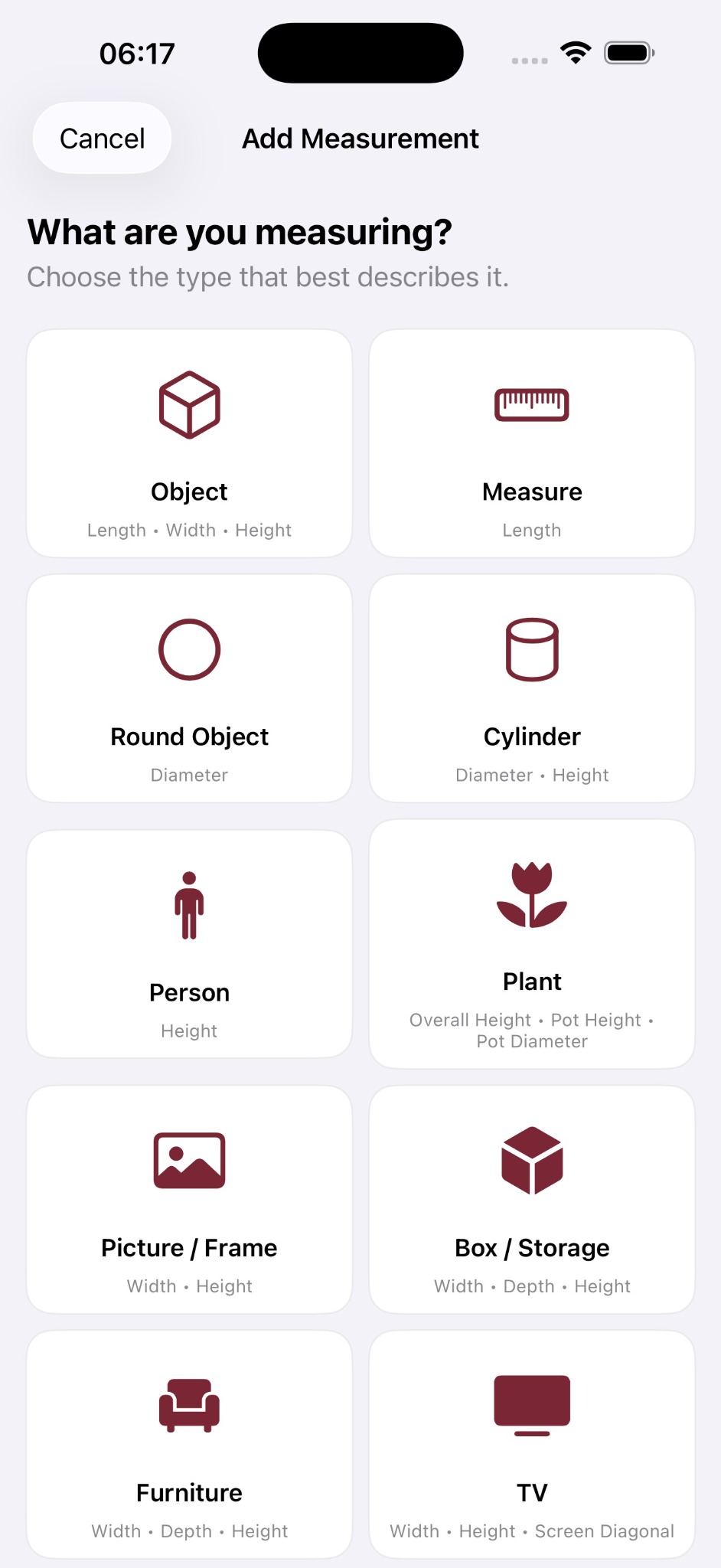
Select the item type that best matches the real object. Each template has measurements suited to that item, such as Width / Depth / Height or Plant Height / Pot Height / Pot Diameter.
Give it a useful name, choose a List, optionally mark it as a Favourite and add a main photo so you can recognise it quickly later.
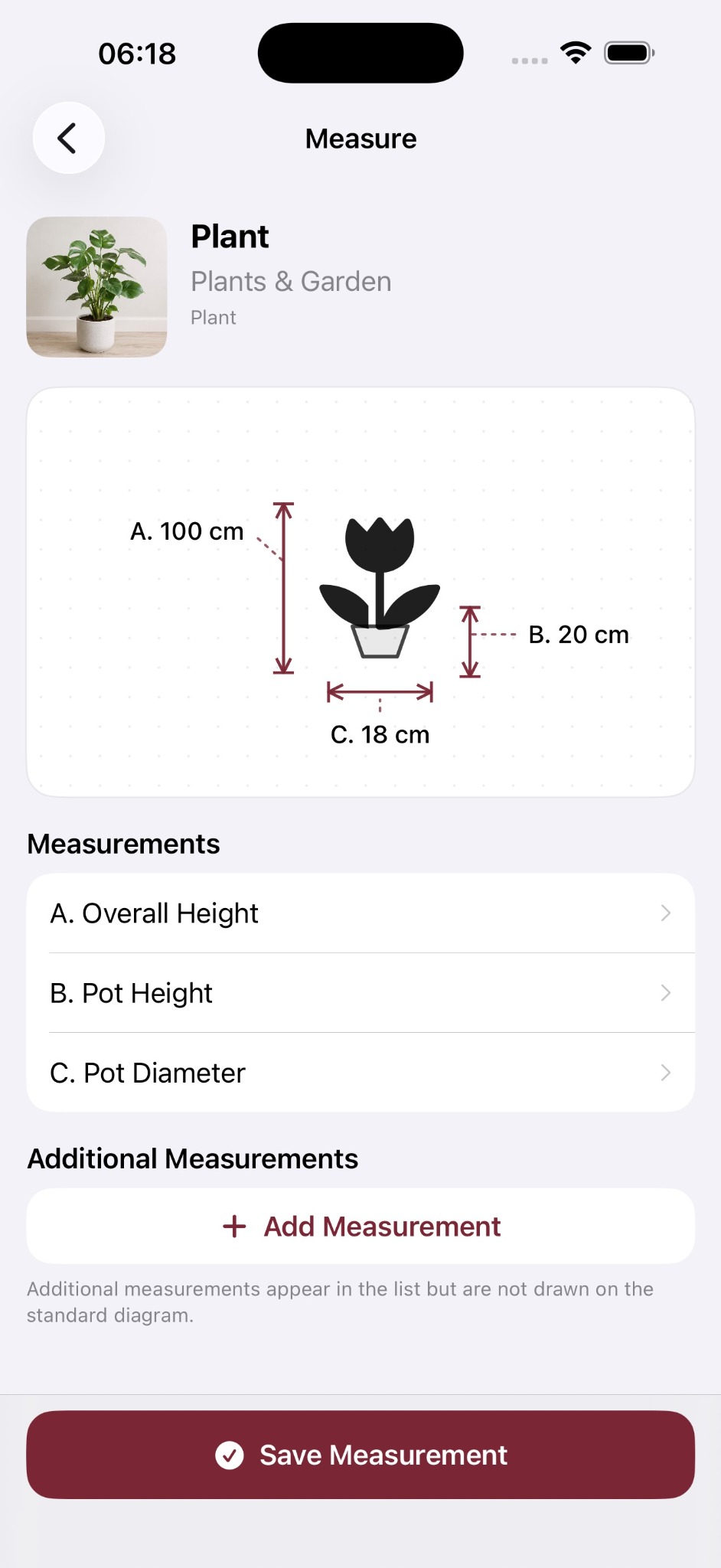
Use the visual diagram to see what each dimension refers to. Enter a manual measurement, or use camera-assisted measuring where supported. Additional custom measurements can be added when needed.
Keep any useful context with the item, such as a model name, required clearance or where you saw it. Save the item to add it to your notebook.
Each saved item can belong to one List, such as Home, New Kitchen or Garden. Favourite status is separate, so an item can belong to a List and also be marked as personally important.
Archive measurements that are no longer current without deleting them. Filters let you view Current, Archived or All items.
Manual measurement entry is always available. Camera-assisted measurement is only available on supported hardware and should be treated as a convenient estimate rather than an exact or professional measurement.
Double-check important measurements with a physical measuring tool. Camera measurements can be affected by device capability, environment, surface detection and other conditions.
When enabled and available, private iCloud syncing can keep your notebook in sync across compatible Apple devices. The app remains local-first, so you can continue working offline and changes can sync when connectivity returns.